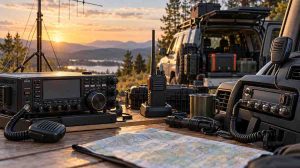

To record a radio program, connect an AM, FM, or shortwave receiver to a recorder, or use your computer’s playback audio capture for an authorized online stream. Make a short test recording before the program starts, then save the file with the station name and broadcast time so you can identify it later.
A station announces a guest you want to hear, but the interview airs while you’re at work. Before setting up a recorder, check the station’s website. If it offers an official replay, podcast, or download, that may be all you need. If there’s no replay and you’re permitted to capture the broadcast, choose the method that matches how you receive it.
Choose a recording method for your source
- AM, FM, or shortwave receiver: Use the radio’s line output or headphone jack and a recorder or audio interface with a compatible input.
- Online station stream: Use the station’s official replay or download when available. For a permitted live capture, use a computer recorder that supports playback audio capture on your system.
- Radio with no audio output: Record its speaker with a phone or handheld recorder in a quiet room. This works for a listening reference, but room noise becomes part of the recording.
If your goal is to document reception, record from the receiver itself. An online stream may carry the same program, but it cannot show what the over-the-air signal sounded like at your location.
How to record AM, FM, or shortwave radio
- Tune the station first. Listen for a moment before connecting the recorder. If an FM or shortwave signal is weak, try moving the radio or adjusting its antenna. For AM, rotating the radio may help if it uses an internal directional antenna.
- Connect the radio to a compatible input. Use line out to line in if both devices have those connections. If the radio only has a headphone output, start with its volume low and use a compatible line input. A headphone jack on a computer does not necessarily accept audio input, and a microphone input may overload when fed a stronger signal.
- Select the correct input and test it. Record 20–30 seconds of speech or music. Watch the meter during louder moments and leave room below 0 dBFS, the digital clipping point. Play the test back through headphones. If you hear harsh distortion, lower the source volume or input gain as appropriate and test again.
- Start a little early. Capture the station identification or introduction if it matters to your log. Check that the recorder is running and that it has enough battery and storage for the full program.
For more on what makes local broadcasts worth listening to, see our guide to the benefits of listening to FM radio.
How to record an online radio stream
Open the station’s official player and confirm that it is carrying the program you want. If you’re permitted to record it, choose a playback capture source in your recorder rather than the microphone. On Windows, a recorder may offer this as a loopback input tied to the output device you’re listening through. Availability depends on your operating system, recorder, and audio setup.
Record a short sample and play it back before the show. If the file is silent even though you can hear the station, check that the recorder is capturing the same output device the stream is playing through. Close other apps and mute notifications: system-wide capture may include alert sounds or audio from other tabs. If you plan to schedule a recording, test the exact setup in advance, including whether the computer stays awake and the stream keeps playing.
Fix common recording problems
- The recording is silent: Confirm the selected input and watch the meter while the station is playing. For a receiver, check the cable and input; for a stream, check the playback capture source.
- Loud voices sound rough: Check whether the input is clipping. Lower the level and make a fresh test. Reducing the volume of an already clipped recording does not restore the lost peaks.
- The broadcast fades or drops out: Listen to the source directly. If the problem is already there, try improving radio reception or stabilizing the stream before changing your recorder settings.
Save the recording with a simple broadcast log
For an archive, keep the original capture and edit a copy. If your recorder offers WAV or FLAC, either can preserve a lossless capture; MP3 can be useful for a smaller listening copy. If your original file is already compressed, converting it to WAV won’t bring back information lost during compression.
Log the station, program, date, start time with time zone, and source. For over-the-air reception, add the frequency and any reception notes. For an online stream, record the station’s player URL. You can also note the file position where a station ID, interview, or other segment begins.
Example log (illustrative): Example FM | Local History Hour | November 12, 2026, 19:00 UTC | 101.7 MHz FM | Station ID at 00:00:18 | Brief fading near 00:12:40.
A matching filename such as 2026-11-12_1900Z_ExampleFM_LocalHistoryHour.wav makes the recording easier to find. Keep a backup if the broadcast would be difficult to replace.
Check permission before sharing a recording
Check the broadcaster’s terms and the rules that apply where you are before recording or reusing a broadcast. If you intend to upload a clip, include it in a podcast, or make an archive public, confirm that you have permission or another applicable legal basis for that specific use. Giving credit does not by itself grant permission.
For your first recording, keep it simple: choose one source, play back a short test, and label the file as soon as you save it. Those three habits make it much easier to capture a usable broadcast and find it again.